Wednesday, June 15, 2011

Upcoming feature: manual retouch brush

Hi all,

I'm currently working on a new feature for FotoSketcher: a mouse driven paintbrush which will allow finer control over specific portions of an image.

Let's take the example of the new Painting 8 (expressive brushstrokes) algorithm. If you use too small a brush size, the resulting painting may look too similar to the original photo. Conversely, if you use a larger brush, the painting may look too rough.

The manual brush will allow you to first render a painting with large and rough brustrokes, and then select the areas of the picture where you need finer details.

Here is an example on a photo of Sir Sean Connery (click on the images to view them full size). The brush size was set at around 100:

As you can see the eyes, nose and mouth brushstrokes need to be refined.

In the future release of FotoSketcher (2.20) you will be able to change the different parameters (for instance reduce the size of the brush to 25) and click on the areas you want to retouch (shown in purple):

When you release the mouse, the finer brushtrokes are automatically applied to the selected area. After a few similar retouches, here is the final result:


The possibilities are endless as I intend to make this manual brush available for most (if not all) effects, which means that you will also be able to apply different effects to different portions of your picture.

All the best,

David

Thursday, May 5, 2011

FotoSketcher 2.10 is officially released

Hi all,

FotoSketcher 2.10 is now officially released. As usual, you can download the new version here: http://www.fotosketcher.com/download.htm

If you already have FotoSketcher installed on your PC, there is no need to uninstall the previous version, it will be replaced automatically during setup.

Here are the new features in this version:
- new painting 8 (expressive brushstrokes) algorithm, with custom brush support
- automatic saving of current image directory and custom brushes directory
- 4 new languages (14 languages included now: Afrikaans, Arabic, Czech, Dutch, English, Finnish, French, German, Italian, Polish, Romanian, Russian, Spanish, Swedish)
- batch processing now supports also bmp and png formats (as well as jpg)
- various user interface improvements and bug fixes
- optional FotoSketcher browser toolbar (for Internet Explorer or Firefox), with direct access to the FotoSketcher application, homepage or Flickr group
- support for drag and drop of images from the web directly to FotoSketcher (drop an image to the left panel to open it as a new source image)

Thank you to all beta testers who gave me their feedback and also to the translators who help make FotoSketcher a multilingual application.

Here are a couple of examples of the new Painting 8 effect (photo credit stock.xchng):


Best regards,

David

Wednesday, April 20, 2011

Close to release...

Hi,

A quick word to let you know that I've finished debugging and tweaking the new painting algorithm (Painting 8 - expressive brushstrokes). I've used a softer brush than previously and have improved the brushstrokes' placement.


As usual, the beta version can be downloaded here: http://www.fotosketcher.com/FotoSketcher_beta.exe

I still have to add some new languages and will then be ready to release version 2.10.

All the best,

David

Sunday, March 20, 2011

New beta available

Photo credit: Sias van Schalkwyk (http://www.seepsteen.co.za/)


A new beta version has been uploaded. You can get it here: http://www.fotosketcher.com/FotoSketcher_beta.exe

The painting 8 filter has been fine tuned and is close to final.

All the best,

David

Tuesday, March 8, 2011

FotoSketcher 2.10 - early beta available

Hi!

I've just uploaded a new beta version of FotoSketcher 2.10 if you want to play with the new Painting 8 (expressive brushstrokes) effect. You can download it here: http://www.fotosketcher.com/FotoSketcher_beta.exe

The new effect is very processor intensive, so despite some optimizing it still takes a while to run. I suggest you don't use it on larger images ;-)

Here is an example of the new filter:


Don't hesitate to let me know what you think!

All the best,

David

Monday, February 21, 2011

Upcoming new effect: expressive brushstrokes

Hi all,

Still working on a new algorithm which uses brushtrokes (like the Painting 7 effect), but with a completely different stroke placement.
I think it gives a nicely expressive touch to the painting. Here is an example (click on the picture to enlarge):


I hope you'll like it.

Best regards,

David

Tuesday, February 15, 2011

Testing new ideas

Hi all,

I'm currently experimenting (fooling around) with new algorithms ideas. Here is an example on the famous parrot:
It's early days yet, but I think it could be promising.

All the best,

David

Tuesday, February 8, 2011

A fun time waster

As if you didn't waste time enough as it is with FotoSketcher, here is a piece of totally useless fun (crank up your speakers and click on the following image) :


Enjoy ;-)

Monday, January 10, 2011

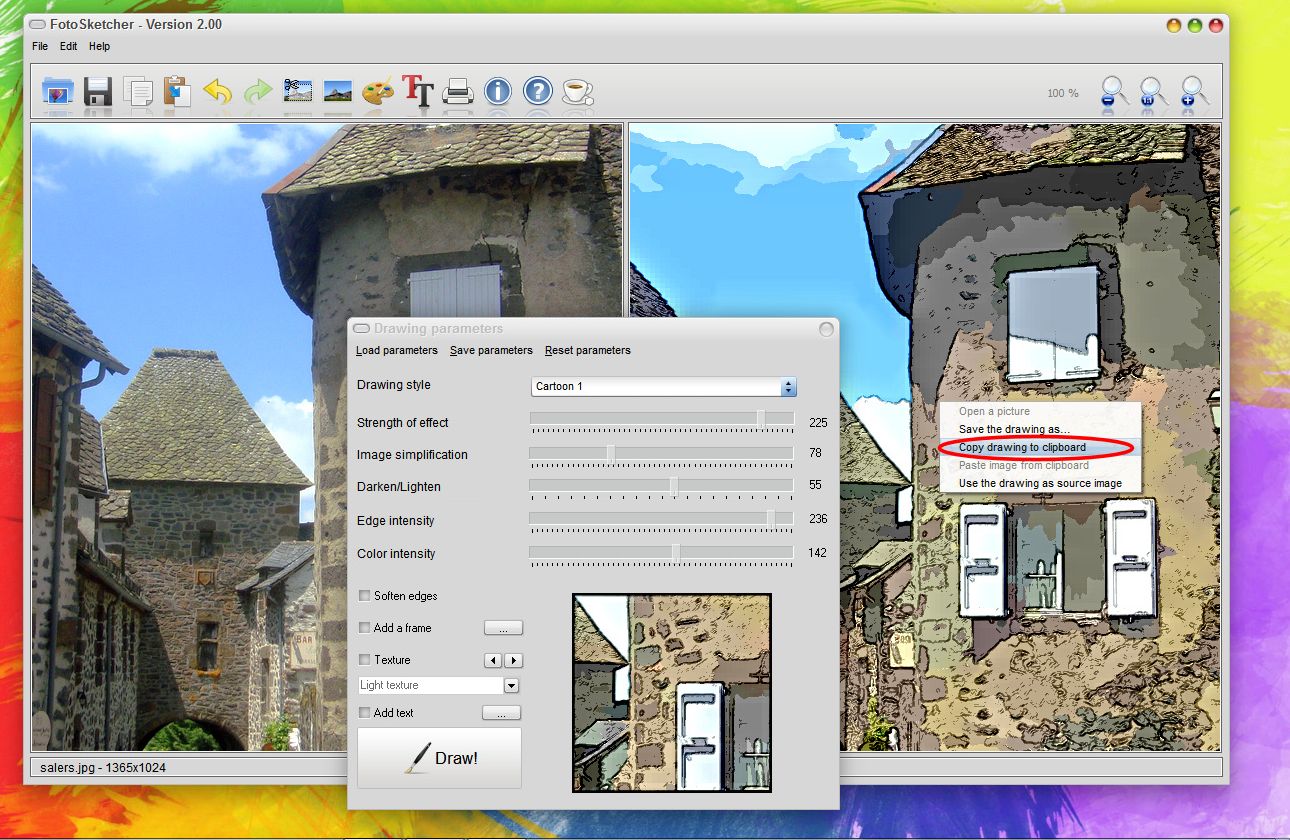
FotoSketcher tutorial - how to apply multiple effects on the same photo

Here is a step by step tutorial on how you can apply two different filters on the same image, using FotoSketcher 2.00.

Step 1:
Open a photo and apply your first effect (here Cartoon 1).


Step 2:
Then copy the resulting image to the clipboard (either by right-clicking on the drawing and choosing 'Copy drawing to clipboard', or by pressing CTRL+C or by clicking on the third icon in the toolbar).


Step 3:
Now apply your second filter (here Painting 6 - oil painting, with increased brushstrokes intensity).
Once the painting is finished, paste the previous cartoon image from the clipboard (either by pressing CTRL+V or right-clicking on the first image and choosing 'paste image from clipboard' or click on the fourth icon in the toolbar, as shown here).


Step 4:
The Cartoon image you had created in step 1 is pasted in both panes. Your oil painting has disappeared, but no panic, this is normal.


Step 5:
Just click on the undo icon (as shown) or press CTRL+Z.


Step 6:
Now the cartoon image in on the left and the oil painting is on the right. The final step is to choose the 'Merge source and result images' effect and voila!


The result:
With a frame and texture added.

I hope you enjoyed this tutorial!

Best regards,

David

Saturday, January 1, 2011

For the New Year... FotoSketcher 2.00 finally released

Happy New Year to all!


After months of hard toil FotoSketcher 2.00 is finally available for download (http://www.fotosketcher.com/download.htm).

I am especially endebted to all the users who provided me with feedback, suggestions and encouragement.

And also a very special thank you to the people who translated FotoSketcher: Zdeněk, Date, Ari, Josef, Luca, cienislaw, Andrei and Bela.

What's new in v 2.00:
  • 10 languages in all (English, French, German, Czech, Polish, Italian, Romanian, Dutch, Finnish, Russian)
  • Crop source or drawn image
  • Lossless 90° rotation
  • Improved and more responsive interface (12 skins, flicker-free icons, real-time preview of brushstrokes)
  • One-click automatic contrast adjustment
  • Check for updates
  • Automatic saving of language, window size, position and chosen skin
  • 4 new realistic frames
  • New custom brushes loading for Painting 7 effect
  • New vintage photo effect (sepia, vignette, old photo texture)

I hope you'll have fun with the new FotoSketcher :-)

All the best,

David