Sunday, August 5, 2018

Tutorial: turn a photo into an illustration with FotoSketcher

Hi all,

A new version of FotoSketcher (version 3.40) is in the works and should be available soon.
In the meantime, here is a short tutorial on how to get an illustrated look with FotoSketcher 3.30.

1 - Open your source image in FotoSketcher. In this example, I have used this photo: https://www.freeimages.com/photo/blue-water-sailing-1-1437302 (credits Julie Tijerina).

2 - Reduce the size of the source image to 50% of the original size (press CTRL-R to bring up the resize window).

3 - Choose the Pen & Ink Sketch 2 effect with the parameters shown below and click on the Draw! button.

4 - Press CTRL-C to copy the sketch into your clipboard (we will use it later)

5 - Choose the Painting 9 (watercolor) effect with the parameters shown below and press the Draw! button.

6 - Swap the left and right images by pressing the F12 key (the watercolor will now appear in the left panel and will be used as source).

7 -  Choose the Painting 1 (watercolor) effect with the parameters shown below and press the Draw! button.

8 - We are nearly there! Now press CTRL-V to paste the sketch image we created in step 3.

9 - Choose the Merge source and result images with the parameters shown below and press the Draw! button (you can optionally add a texture and frame).
10 - Save your illustration (press CTRL-S) to your hard drive and you're  done :)

And here is the final result (click on image to see in full size):


All the best and have a great summer,

David

Saturday, April 21, 2018

Work in progress - Windows 10 and Android screenshots

Hi all,

As you may know, I'm trying to make FotoSketcher truly multi-platform.
I'm currently working on the user interface part of the code and here are two screenshots : one in Windows 10, the other on my Android tablet.

Running in Windows 10 (Delphi IDE in the background)

Android screenshot


Added on May 25th: just tested on MacOS and it's also working fine.

MacOS screenshot

So far so good ;)

Best regards,

David

Sunday, January 28, 2018

A parrot in New York!

Hello all,

A parrot in New York? What a strange title for this post...
Just bear with me for a second and all will become clear :)

I have recently been working on many fronts regarding FotoSketcher:
  • the experimental Mac version
  • a new painting effect
  • some Android coding (many issues to solve on that front)
  • and a brand new redesign of the interface

A friend of mine (hi Martin!) who is a talented young UI and UX designer has helped me tremendously with the user interface modernisation of FotoSketcher. I'm currently in the process of integrating his design into a new version of FotoSketcher, which hopefully will be truly multi-platform.

Since Martin (who is French like me) is now staying in New-York, part of the future interface of FotoSketcher has been designed in the Big Apple. And the FotoSketcher iconic parrot will still be there (albeit a slightly different parrot from the current one).

Without further ado, here is a glimpse of what the future FotoSketcher will look like: 


In the meantime, I hope you continue enjoying the current version of FotoSketcher ;)

All the best,

David

www.fotosketcher.com
www.patreon.com/FotoSketcher
www.paypal.me/FotoSketcher

Monday, June 12, 2017

FotoSketcher for MacOS (updated)

Hi all,

I have just recompiled a new version of FotoSketcher 3.30 for MacOS, which solves the trackbar bug (where the trackbar cursor positions would not update properly).

This makes FotoSketcher much more usable on Macs. I have successfully tested on MacOS El Capitan.

To download, head over to https://www.fosshub.com/FotoSketcher.html.

https://www.fosshub.com/FotoSketcher.html/FotoSketcher_Mac.app.zip

Some Mac users have mentioned that they were unable to download and install on MacOS El Capitan, due to security reasons.

This is because I do not have an Apple developper ID, not because FotoSketcher is a dangerous application (just make sure you ONLY download it from the official page https://www.fosshub.com/FotoSketcher.html).

Here is the Apple support answer to this problem: https://support.apple.com/en-us/HT202491

Have fun on your Macs!

Best regards,

David

Sunday, June 11, 2017

New FotoSketcher video tutorials (in English)

Dear all,

Steven Friedman, a very competent FotoSketcher user, has created and kindly shared some great tutorials:
Thank you Steven, I'm sure these tutorial will help many a new user!

All the best,

David


Friday, March 3, 2017

FotoSketcher for Mac available (experimental, but usable)

Hi all,

As you may know, FotoSketcher is a Windows only program and I am currently working on a truly multiplatform version (testing on Android at first).
But since it is a complete rewrite of most of my code (which can be a good thing to iron out some bugs), it is also a rather large undertaking for a single hobbyist programmer like myself.

Having been asked many times for a MacOS version, I looked into various solutions: emulation software (either free like WineHQ or not, like Parallels Desktop), or recompilation with a cutting edge framework (crossVCL, which looks very promising).

In the meantime, I have packaged the latest FotoSketcher version (3.30 at this time) into a Mac compatible program using WineBottler.
Here the .zip file (warning 75 MB, thank you www.fosshub.com for hosting): https://www.fosshub.com/FotoSketcher.html/FotoSketcher_MacOS.zip

https://www.fosshub.com/FotoSketcher.html/FotoSketcher_MacOS.zip

Just open it and run FotoSketcher on your Mac! 

CAVEAT : I have only tested on OS X El Capitan. Apart from a few quirks - mainly visual - I have found FotoSketcher to work fine. But, as usual, use at your own risk and I shall not be held responsible should anything bad happen.

How to install:

Once you've downloaded FotoSketcher_MacOS.zip, move it to the location of your choice (I have simply chosen the desktop).


Then open the .zip file as shown below:


This will extract FotoSketcher and create the program icon.


Double-click to run, and voila!


One of the problems you may encounter is that the trackbars will not update correctly (as shown in the screenshot above). However, you can still move the cursor to the value you want and the parameters will be changed accordingly.

Have fun :)

Best regards,

David


Monday, February 27, 2017

New FotoSketcher tutorial

Hi all,

I have been asked time and time again to write a proper help file or at least a new tutorial. So far, I've always been too lazy busy to do so, but I'm happy to announce a brand new 8 page tutorial (packed with information for both new and more advanced users).

If you've never used FotoSketcher before, this tutorial will help you grasp the basics (open an image file, apply an effect, save your masterpiece).

If you're already familiar with FotoSketcher, this tutorial will show you some tricks you may not know yet, like applying transparent text to your drawing or painting.

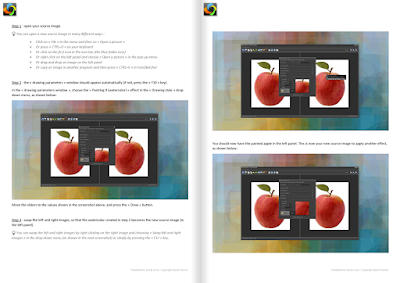
Here is the tutorial in .pdf format: http://www.fotosketcher.com/Tips1.pdf

And here is the online version (thanks to the great flowpaper.com solution): http://fotosketcher.com/Tips1.html

FotoSketcher tutorial


For more tips and tricks, head over to: http://fotosketcher.blogspot.fr/2013/04/fotosketcher-secrets-tricks-you-may-not.html

And remember: don't be afraid to experiment with FotoSketcher :)

All the best,

David

Paypal donation

Support FotoSKetcher on Patreon


P.S. A great, great thank you to all the generous users who have helped me continue the development of FotoSketcher, by supporting me on Patreon or via PayPal donations :)

Monday, February 6, 2017

Limited edition prints available for sale

Hi all,

If you want to purchase some very high quality prints, head over to https://www.curioos.com/product/acrylic/generative-art-2 for some abstract art made in FotoSketcher :)


If you prefer a nice painted landscape, go to https://www.curioos.com/product/print/tuscan-landscape


Best regards,

David

Wednesday, February 1, 2017

FotoSketcher 3.30 officially released

Hi all,

The new version of FotoSketcher (v 3.30) is now available. As usual, you can head over to http://fotosketcher.com/download-fotosketcher/ to download either the full (with setup) or portable 32bit versions.
If have a 64bit bit version of Windows, I encourage you to use the 64bit versions of FotoSketcher, available from the official mirror website here: https://www.fosshub.com/FotoSketcher.html

You will find a list of the new features in my previous post: http://fotosketcher.blogspot.fr/2017/01/beta-version-of-fotosketcher-330.html

I hope you will have fun experimenting with FotoSketcher :) Be creative!

All the best,

David

Screenshots of FotoSketcher 3.30:

 drag the red line with your mouse to stop any effect at x%

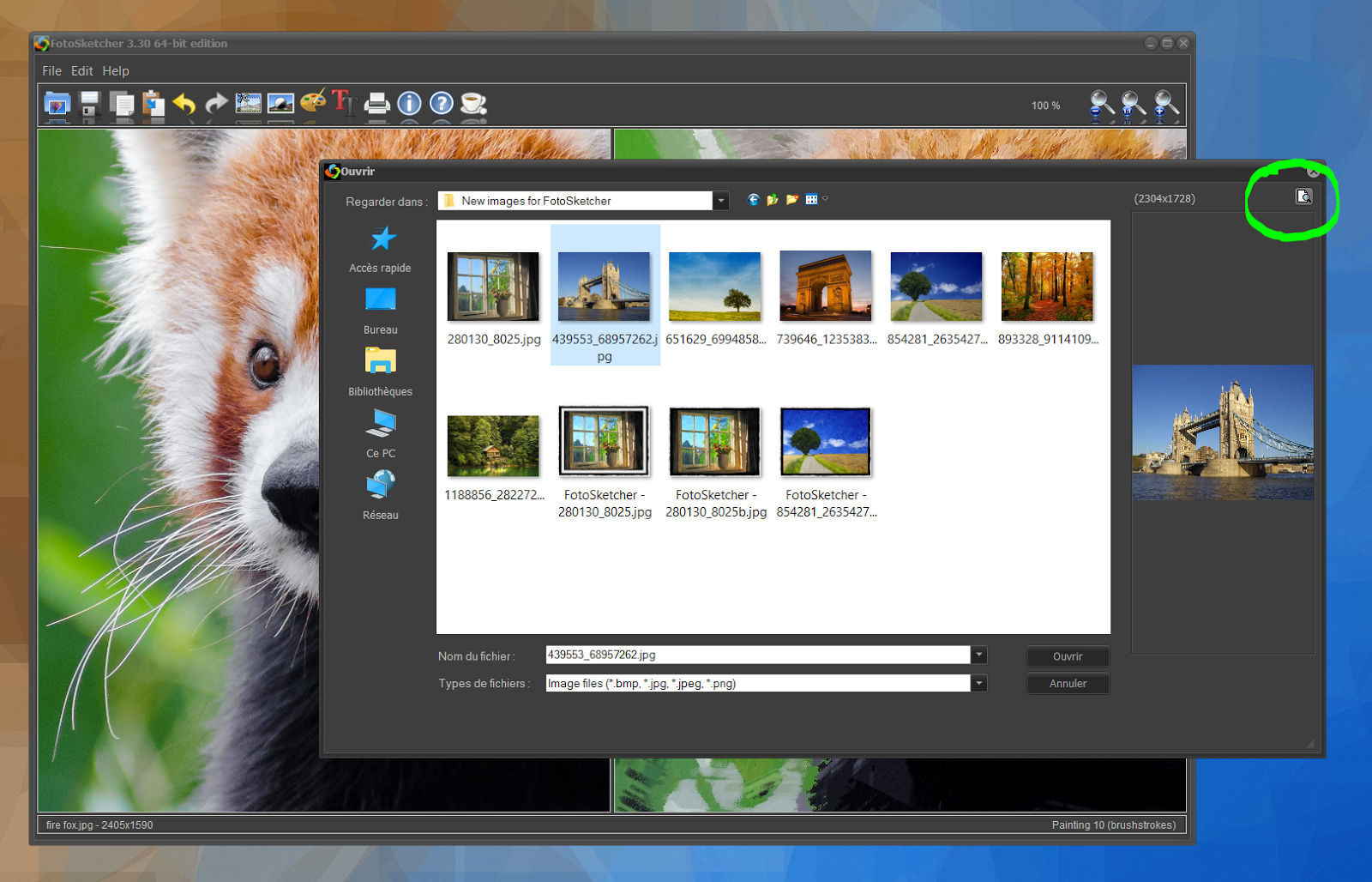
 when opening a source image, click in the top right corner for a large preview

in painting 10, load custom brushes (in transparent .png format)
you can also double the size of the brushstrokes (check the x2 tick box)

 if you press the END key on your keyboard, you can toggle long filenames ON or OFF

 with long filenames ON, the effect used and associated parameters will be saved in the filename

 obligatory cute red panda :)


Sunday, January 29, 2017

Beta version of FotoSketcher 3.30 available

Hi all,

A stable beta version of FotoSketcher 3.30 is now available for download here: http://www.fotosketcher.com/FotoSketcher_3.30_beta1.zip version 3.30 is now officially released


Just download anywhere on your PC, unzip the file and run!

Here are the new features in v3.30:
- user interface improvements:
         . cleaner splash screen
         . better window management (when the application is maximized)
         . new simpler panel backgrounds
         . more legible text for high dpi screens
         . skinned dialog windows


- new draggable cursor to interrupt an effect at x% (useful for some effects where the result can be interesting before reaching 100%)
- possibility to load your own brushes for Painting 10 (in transparent .png format) and render with twice larger brushstrokes
- new abstract effect (great for desktop wallpapers or phone and tablet backgrounds)
- option to save the effect number and parameters used in the filename (e.g. "FotoSketcher_Image1_Painting10 (brushtrokes)_50_50_50_130_130_130.png". To enable this function, either manually edit the fotosketcher.ini file (change the last line from False to True) or while in FotoSketcher, press the 'END' key.


After extensive testing, I believe this beta version to be stable, but I welcome your feedback, should you find any bug.

Have fun :)

best regards,

David